
How do I submit feedback?
What this guide covers
If something breaks, feels wrong, or you have a suggestion, use screenshot feedback or go to System Settings → Feedback. The team will follow up; progress and replies appear in-app (notifications / feedback results).
Screenshot feedback is recommended: the on-screen context is clearer and easier to diagnose.
Requirements and before you start
- DeBox is installed and can open.
- Description needs about 5 characters minimum and about 300 maximum (follow the page).
- Attach up to about 3 images; do not include private keys, seed phrases, PINs, or full payment QR codes.
- Auto-jump after screenshot applies only to non-sensitive pages; you can turn off Open this page after screenshot on the feedback form.
- Screenshot feedback (recommended): capture the broken screen, then confirm the jump prompt.
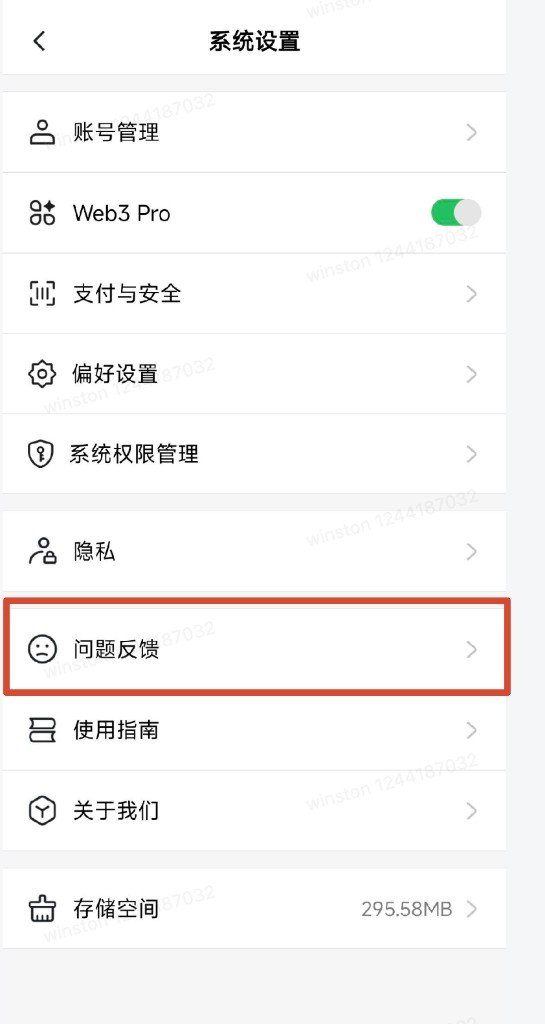
- Settings: Me → Settings → System Settings → Feedback.
Steps
Option A: Screenshot shortcut (recommended)
- Open the screen where the issue happens and take a system screenshot.
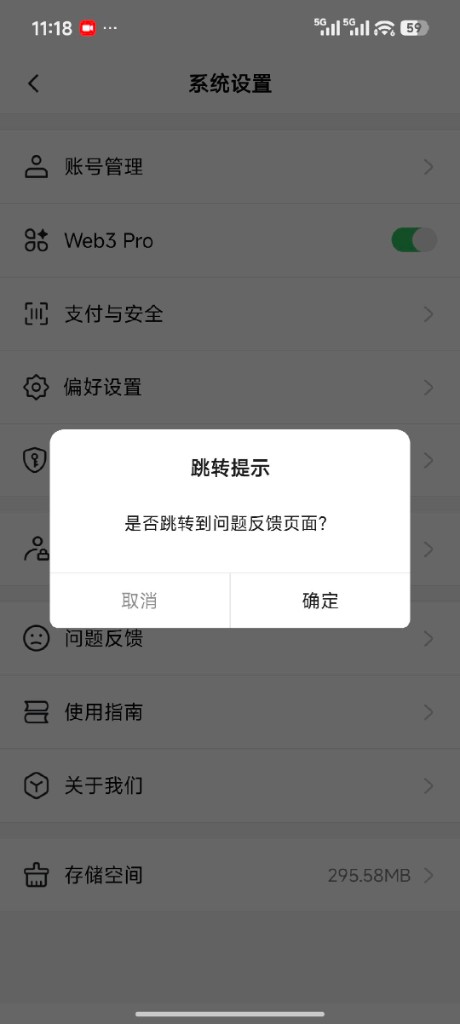
- If auto-open is on, a prompt asks whether to go to the feedback page.
- Tap Confirm to open Feedback; the screenshot is usually attached.
- If you tap Cancel, use Option B later and attach images manually.
Option B: Open Feedback from System Settings
- Open bottom Me, then the gear Settings.
- In System Settings, tap Feedback.
- Fill in the form as below and submit.
Fill in and submit
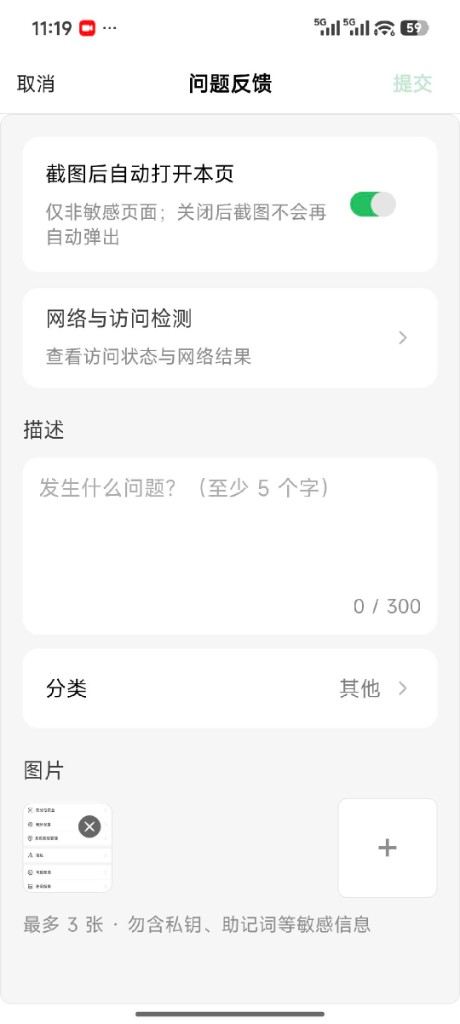
On the Feedback page:
- Description: what happened, which feature/page, and whether it reproduces (about 5+ characters).
- Category: pick the closest option (e.g. Other).
- Images: keep the key screenshots; tap + to add more (up to about 3).
- (Optional) Open Network and access check to review connectivity results.
- (Optional) Toggle Open this page after screenshot for non-sensitive pages.
- Tap Submit (top-right). It may stay gray until the description meets the minimum length.
After you submit
- Your report enters the official handling flow; the team reviews the description and screenshots.
- Progress, follow-up questions, or results appear via in-app messages/notifications or the feedback-related entry (names may vary by version).
- Avoid flooding the same issue; if you have new details, send another note marked as a follow-up.
Tips
- Capture the exact broken screen—better than describing it later.
- Include path, expected vs actual result, and OS / App version when you know them.
- For payment/transfer issues, attach non-sensitive order/tx info if helpful—never keys or seed phrases.
- Try Help Center self-serve guides first, then feedback if still stuck.
Common questions
No jump prompt after screenshot?
Auto-open may be off, or the page is sensitive. Open System Settings → Feedback manually and turn the toggle on, then retry.
Why is Submit gray?
The description usually needs the minimum length (about 5 characters).
Can I submit text only?
Yes, but screenshots usually speed up diagnosis. Up to about 3 images.
How soon will I get a reply?
Timing depends on issue type and queue. Follow in-app notices; this guide does not promise a fixed SLA.
Can I paste a seed phrase or private key?
No. Official support will not ask for seed phrases, private keys, or PINs—and you must not attach them.
What is the network check for?
It shows access/network results to help diagnose connectivity issues. Follow the on-page results.