
How do I create and use a voice room?
What this guide covers
Full voice room (Live) flow: create/schedule, set who can join, upgrade with passes, then mic and room management. Pass comparison: What are voice room passes and user benefits?.
Requirements and before you start
- DeBox is installed and can open.
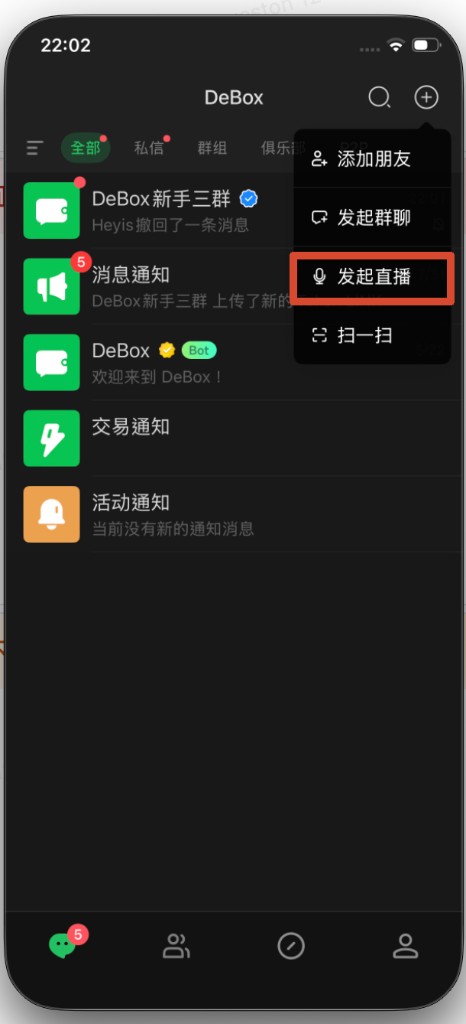
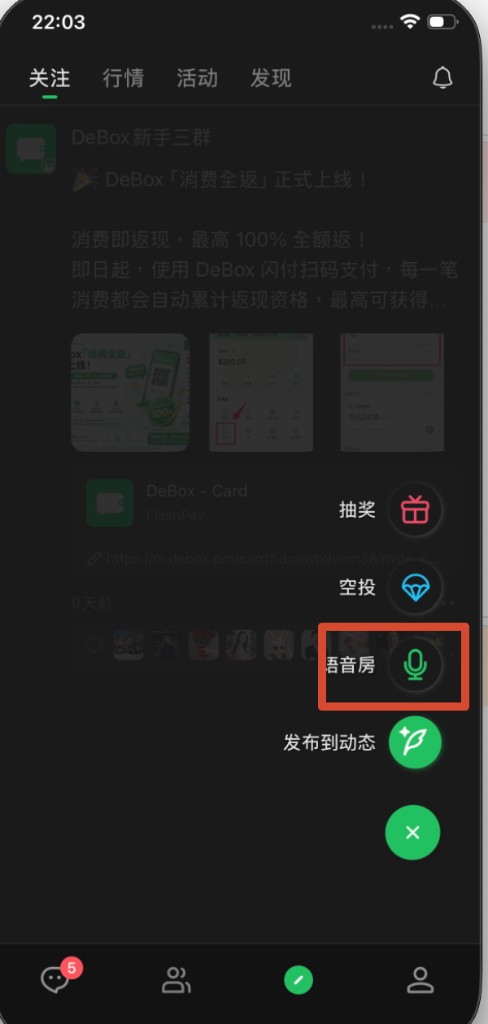
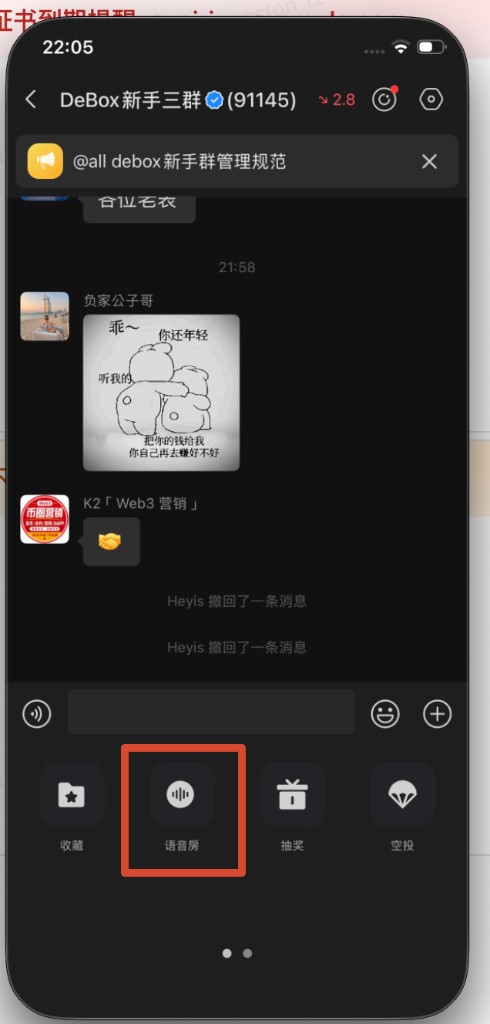
- Common create entries: Messages + → Start Live; Home center + → Voice room; Group chat + → Voice room.
- Create-page Current benefits follow your account: non-members often 1 hour / 100 people; members often 2 hours / 500 people.
- For longer time, more capacity, screen share, recording, or always-on rooms, use VIP / time / monthly passes (verify amount and network when paying).
When paid join or pass purchase involves assets, verify amount and network. Never share seed phrases, private keys, or PINs.
Steps
1. Open Create voice room
Pick an entry:
- Messages: top-right + → Start Live
- Home: center + → Voice room
- Group chat: input + → Voice room
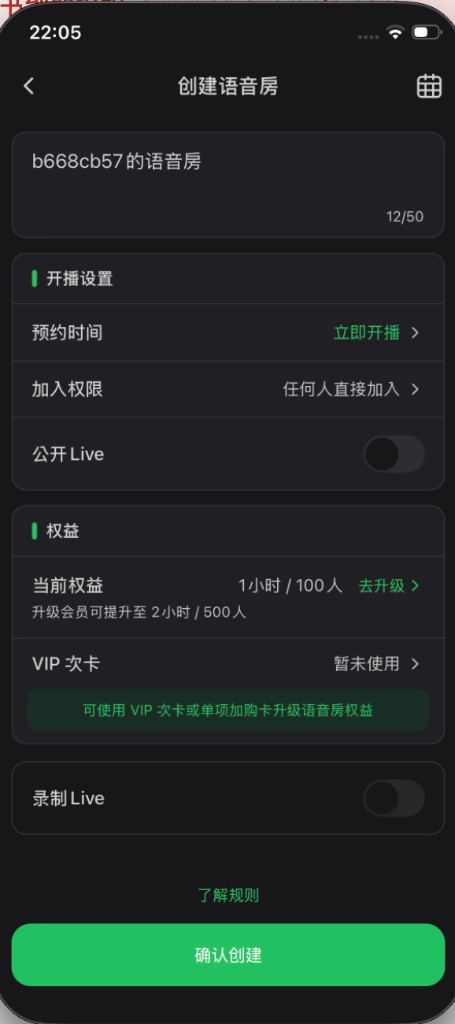
Title is Create voice room. From a group, context may be prefilled; topic may default to “{name}'s voice room”. The calendar opens Upcoming Lives.
2. Topic and broadcast settings
- Enter a topic (often up to ~50 characters).
- Under broadcast settings:
- Schedule: empty means start now; pick a time to schedule.
- Who can join: see next section.
- Public Live: whether more users can discover it.
- Check Current benefits; tap Upgrade for membership default tier.
- Tap VIP pass for higher perks.
- Record Live: enable only after selecting a pass that supports recording (Lite / Pro / time pass—follow the page).
- Optional Rules link.
- Tap Confirm create.
3. Who can join
Open Who can join / join permission on create/edit. Common options:
| Type | Meaning |
|---|---|
| Anyone can join | No gate (default) |
| Hold a token | Chain, token, and amount required |
| Wallet assets threshold | e.g. total assets in USD |
| Password | Enter password to join (may auto-generate 6 digits) |
| Paid join | Some versions require paying (e.g. vBOX)—follow the page |
Listeners hitting a share link/card see password, holding, asset, or payment prompts. Share copy may include the gate text.
4. After create
- Start now: enter the room UI.
- Scheduled: edit/share, or later tap Start now in Upcoming Lives.
Edit via Edit voice room to change topic, join rules, public flag, etc.
5. Manage schedules
- Open Upcoming Lives.
- For not-started items: Start now / Share / Edit / Cancel.
- In-progress rooms can be entered directly.
6. Upgrade with passes
- Tap VIP pass on create (or in-room upgrade).
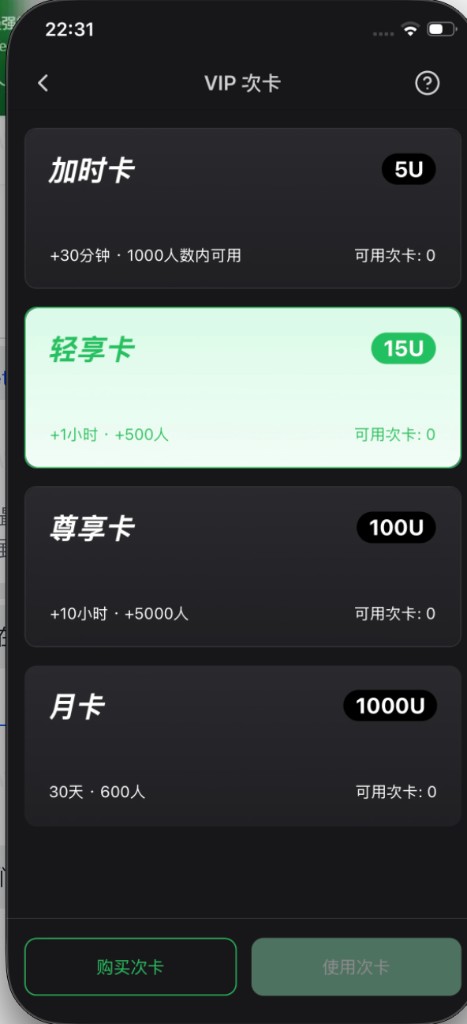
- Review tiers: time pass, Lite, Pro, monthly pass.
- Buy or Use an owned pass.
- Create page usually says the pass applies after Live starts; in-progress rooms can also be upgraded.
Quick Live / Lite / Pro table (follow App for live prices):
| Perk | Regular Live | Lite | Pro |
|---|---|---|---|
| How | Default create | Stackable | Stackable |
| Price | Free | ~15 U / card | ~100 U / card |
| Duration | ~2 h default (non-members often lower) | +1 h / card | +10 h / card |
| Max duration | ~2 h | ≤24 h | ≤24 h |
| Capacity | ~500 (non-members often lower) | +500 / card | +5000 / card |
| Hosts | 4 | 4 | 4 |
| Guests | 4 | 8 | 12 |
| Screen share | — | Yes | Yes |
| Icon / border | None | None | 🔥 / dark-gold style |
| Event pin | No | No | Yes |
| Best for | Normal rooms | Light expansion | Project ads / large events |
Time (hour) pass: mainly extra time; can also unlock screen share and recording.
Monthly pass: 1000 U / 30 days always-on room—see benefits guide.
Full comparison: What are voice room passes and user benefits?. Screen share: How do I start a voice room and use screen share?.
7. Join someone else’s room
- Open from share card, list, or notification.
- Complete password / holding / assets / payment gates.
- If asked about an abnormal exit, you may rejoin quickly.
Also see How do I join a voice room?.
8. In-room actions
Roles usually include host, guest/speaker, and listener.
| Action | Notes |
|---|---|
| Request mic | Listener applies to speak |
| Invite to speak | Privileged users invite others |
| Mic on/off | Manage self or others |
| Invite as host | Raise permission |
| Switch to listen | Leave speaker seat |
| Mute / remove | Moderation |
| Leave | Exit yourself |
| Close room | End session; recording may stop together |
Host/guest caps follow Regular / Lite / Pro / monthly tiers.
9. Recommended content (optional)
Hosts may add recommended tokens/links within page limits. Commission rules follow product copy.
Common questions
Why can’t I record?
Usually need a recordable pass (Lite / Pro / time pass). Monthly pass rooms cannot record. Per-room recording start limits may apply.
How long / how many people by default?
See create-page Current benefits. Non-members often 1 h / 100; members often 2 h / 500; then stack passes.
How do I start a scheduled Live?
Upcoming Lives → Start now.
How do I end the room?
Privileged users close the voice room and confirm; handle recording prompts if any.
Why join fails?
Wrong password, insufficient tokens/assets, unpaid gate, full/closed room, network issues.
VIP pass vs membership?
Membership raises default create tier; passes upgrade a session or always-on month. See What are voice room passes and user benefits?.