
How do I back up my account (export recovery phrase or private key)?
What this tutorial covers
This guide helps you back up your account in DeBox: open account details, choose to export your recovery phrase or private key, and verify with PIN or biometrics.
Scope and prerequisites
- DeBox is installed and you can open it, and you have created or imported an account.
- You have set DeBox's 6-digit PIN. If biometric payment is enabled, you can also verify with fingerprint or Face ID.
- Prepare pen and paper for offline backup. Do not take screenshots or send it to anyone.
- Work in a private environment so others cannot see your screen.
Your recovery phrase and private key equal control of your account and assets. If they are lost with no backup, assets usually cannot be recovered. DeBox official support will never ask for your recovery phrase, private key, or PIN. Do not send related content or screenshots to anyone.
Steps
1. Open Me and the account list
- Open DeBox.
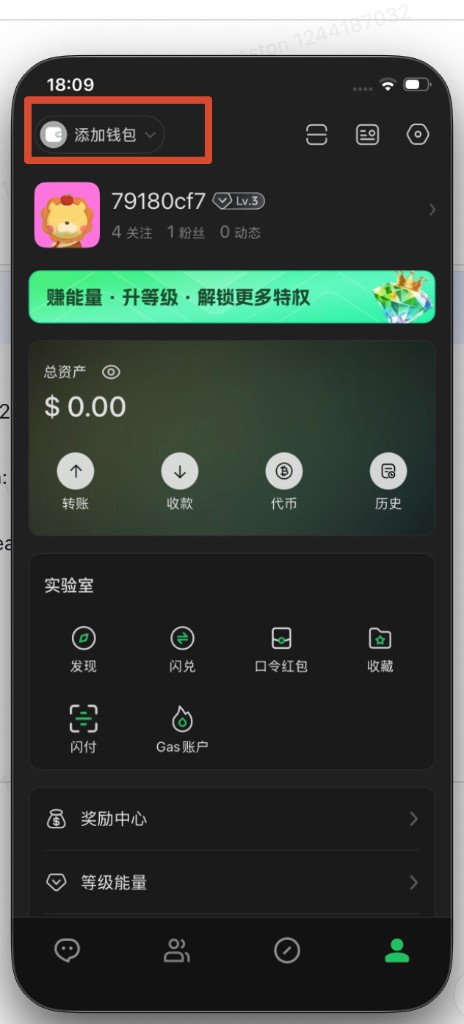
- Tap Me at the bottom.
- Tap Add wallet in the top-left corner to open the Accounts list.
2. Select the account to back up
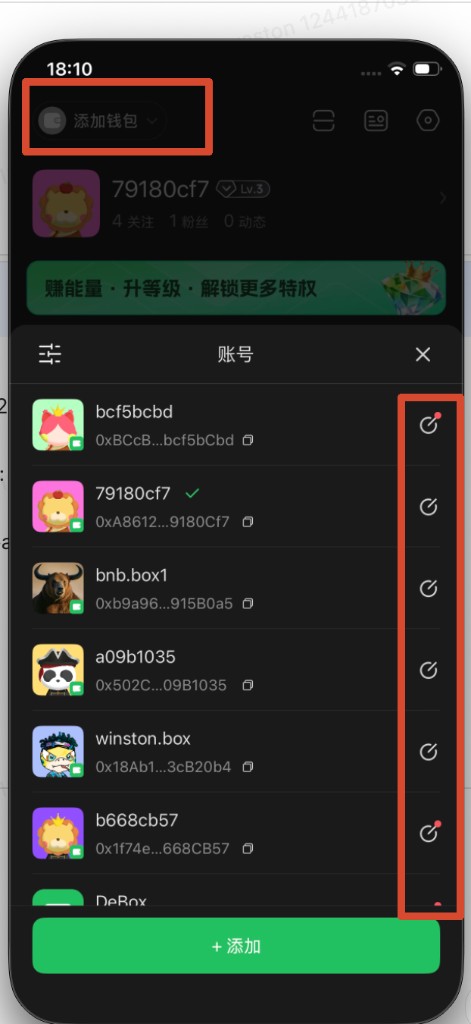
In the Accounts list, find the account you want to back up and tap the entry on the right to open Account details.
3. Choose a backup method
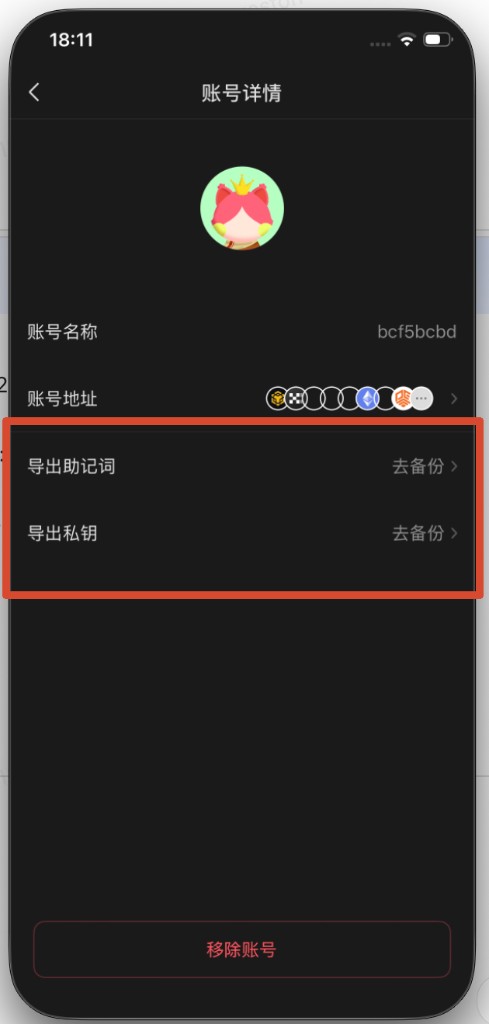
On the Account details page, choose one backup method:
- Export recovery phrase: tap Back up on the Export recovery phrase row.
- Export private key: tap Back up on the Export private key row.
4. Verify and complete the backup
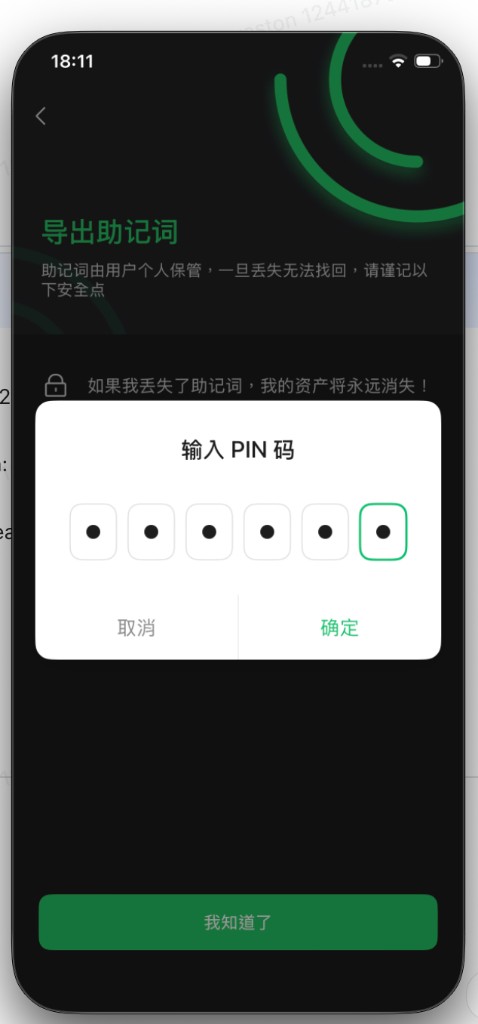
- Read the security notice on the page and continue after you understand the risks.
- Enter your 6-digit PIN or verify with biometrics as prompted.
- After verification succeeds, view and write down your recovery phrase or private key offline as prompted.
- Confirm it is stored safely before closing the page. Do not send the content to anyone.
FAQ
Why does "Add wallet" open the account list?
In the current version, Add wallet in the top-left opens the Accounts management list, where you can switch accounts, add accounts, or open an account's details to back it up.
What is the difference between exporting a recovery phrase and a private key?
Both can restore or control the corresponding wallet. Choose the method you used when creating or importing the account. Both must be stored offline safely after export.
Can I verify with biometrics?
Yes. If biometric payment is enabled, use fingerprint or Face ID as prompted by your phone. If unavailable, use your PIN.
Should I delete screenshots after backup?
This tutorial does not recommend saving your recovery phrase or private key as screenshots. If you accidentally saved related screenshots, delete them from your photo library and cloud sync immediately.
Can I still back up if I forgot my PIN?
If biometric payment still works, try verifying with biometrics first. If biometrics are also unavailable, see What if I forgot my PIN? or contact DeBox official support for guidance.