
How do I register a DeBox account?
What this tutorial covers
This guide helps you finish account and wallet setup after installing DeBox, and complete your profile for fuller access.
Scope and prerequisites
- DeBox is installed on your phone and you can open it.
- Prepare pen and paper for offline recovery phrase backup. Do not take screenshots or send it to anyone.
- Before creating a wallet, make sure your surroundings are private so others cannot see your screen.
Steps
1. Open DeBox and skip the intro
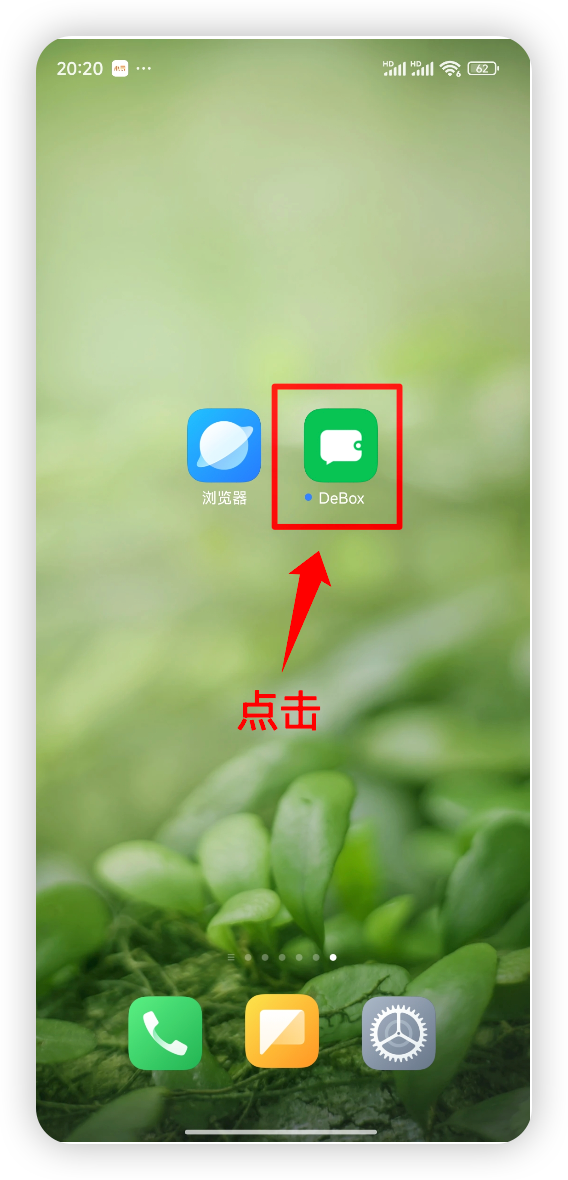
Tap the DeBox icon on your home screen. If an intro page appears, tap Skip in the top-right corner.
2. Create or import a wallet and back up your recovery phrase
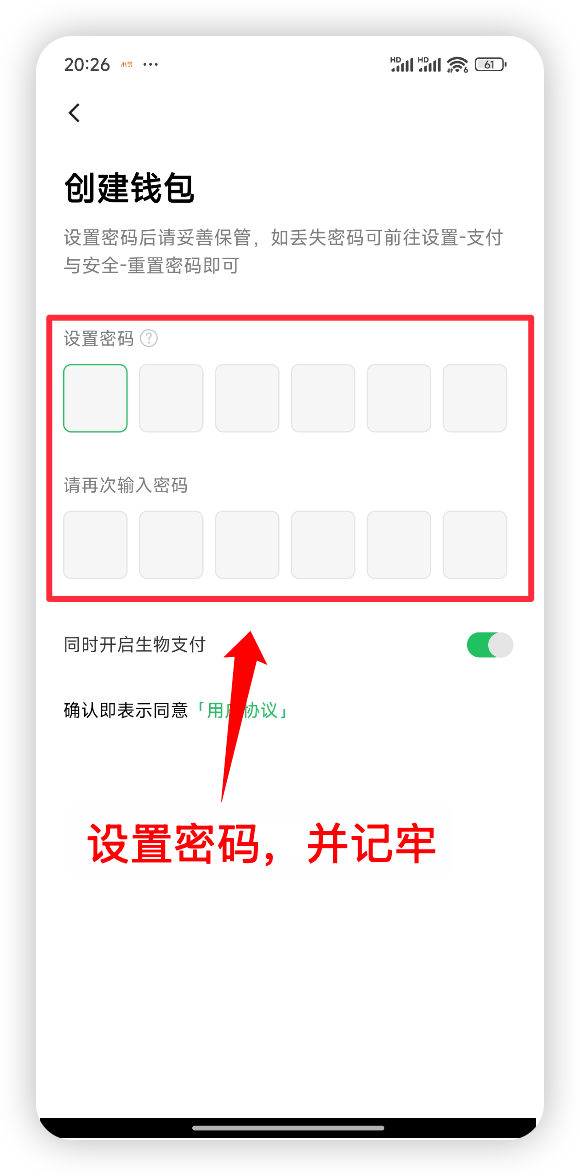
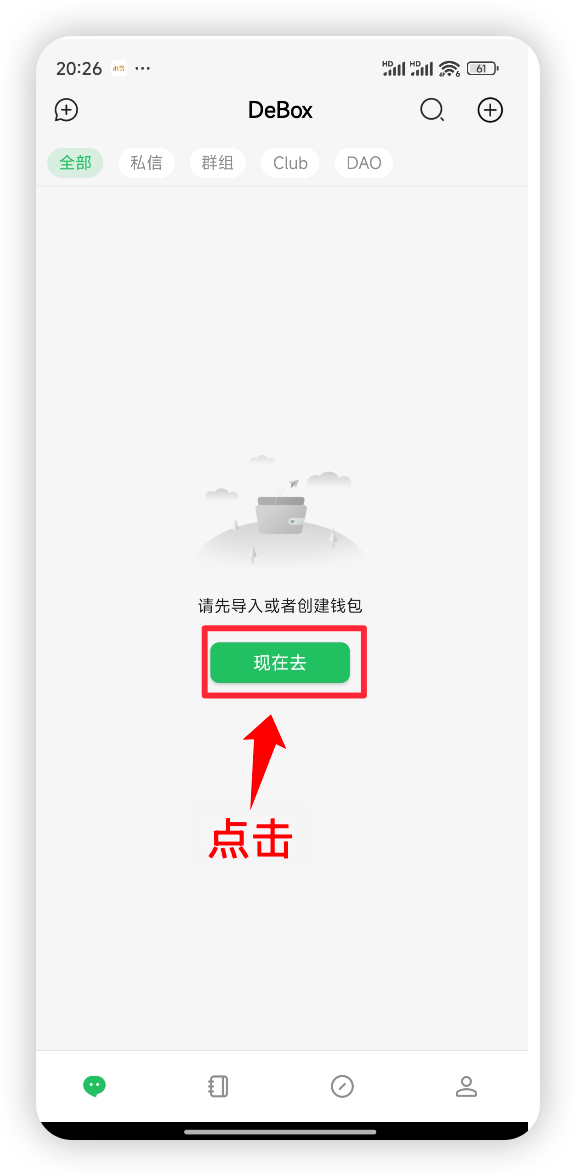
When the page prompts "Please import or create a wallet first," tap Go now and follow the prompts to create a new wallet or import an existing one.
Before exporting your recovery phrase, read the security notice carefully and continue only after you understand the risks. Write the recovery phrase on paper and store it safely. After confirming your backup is complete, tap the confirmation button on the page.
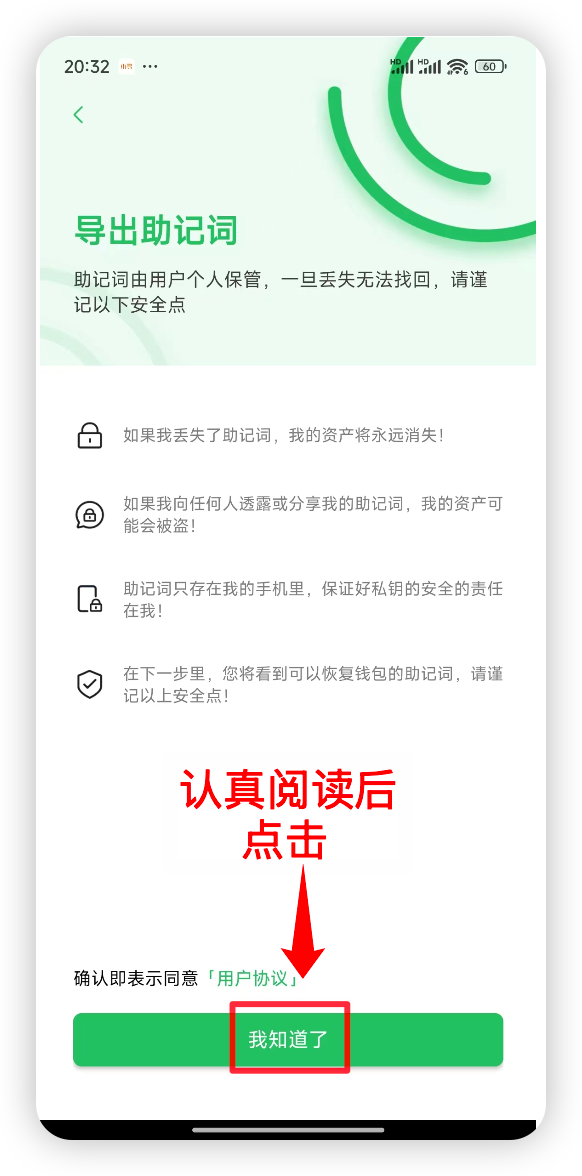
Your recovery phrase must be kept offline by you alone. DeBox official support will never ask for your recovery phrase or private key. This tutorial does not show any real recovery phrase content.
3. Complete recommended follows and groups
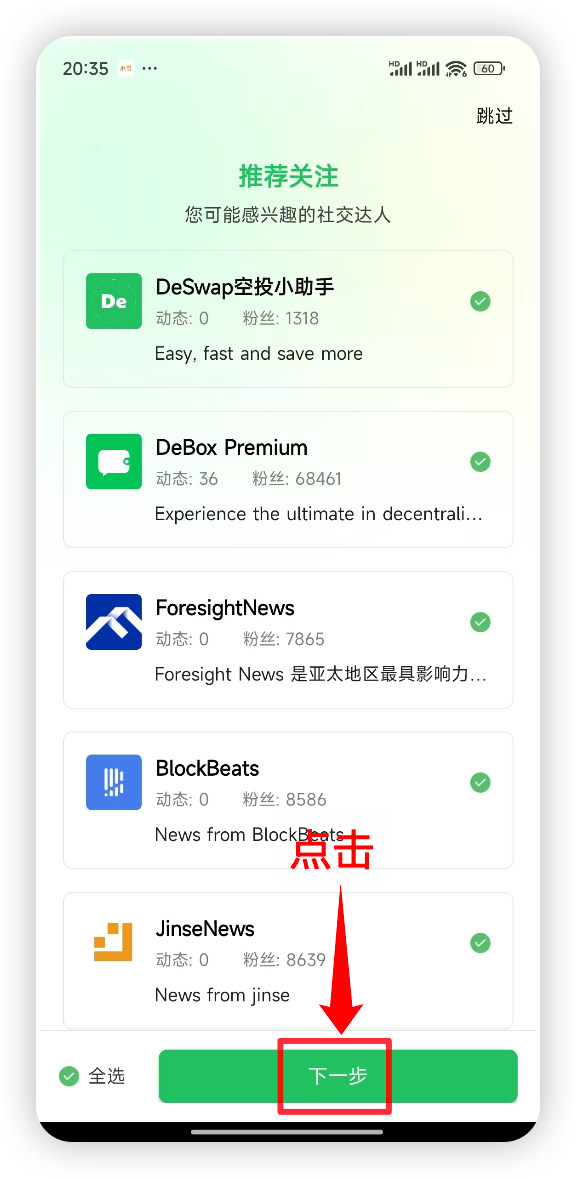
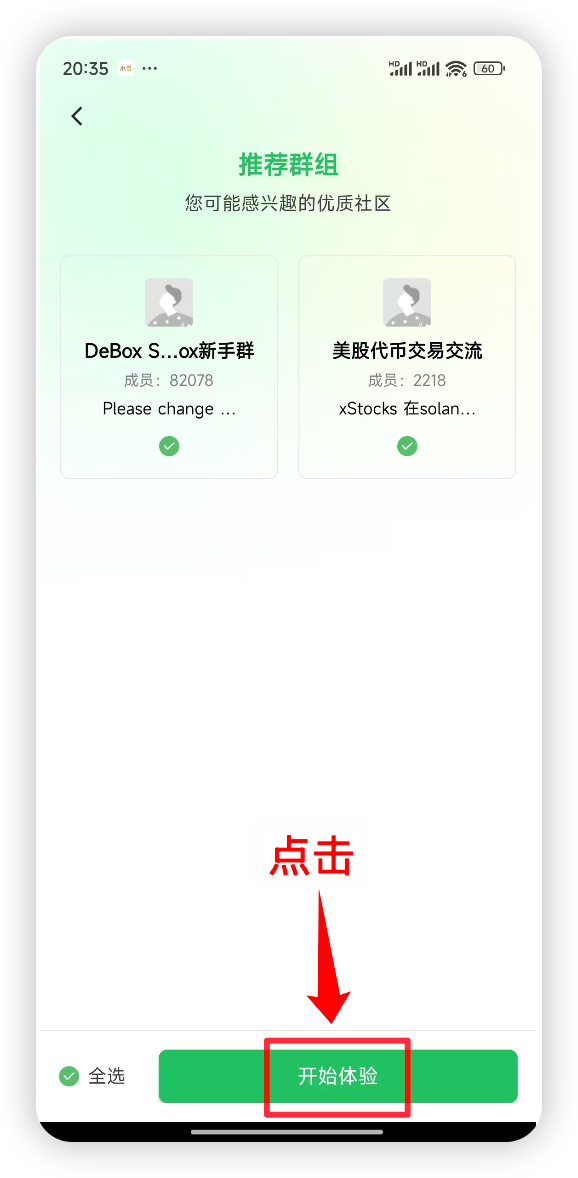
Follow the prompts for "Recommended accounts to follow" and "Recommended groups." Select as needed, then tap Next or Start exploring to enter the main app.
4. Complete your profile to raise your account level
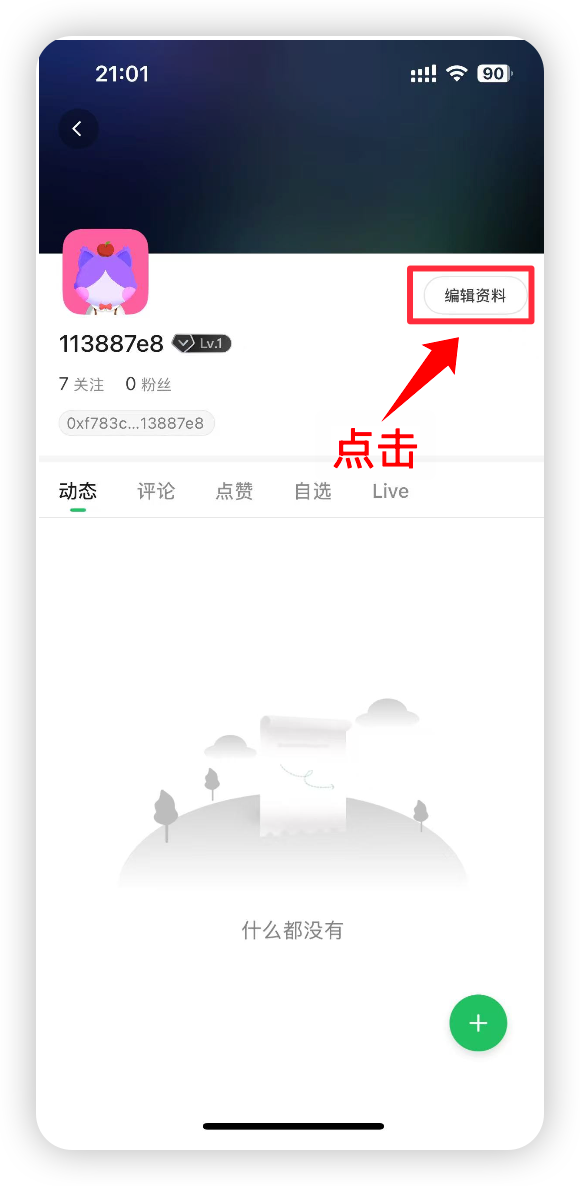
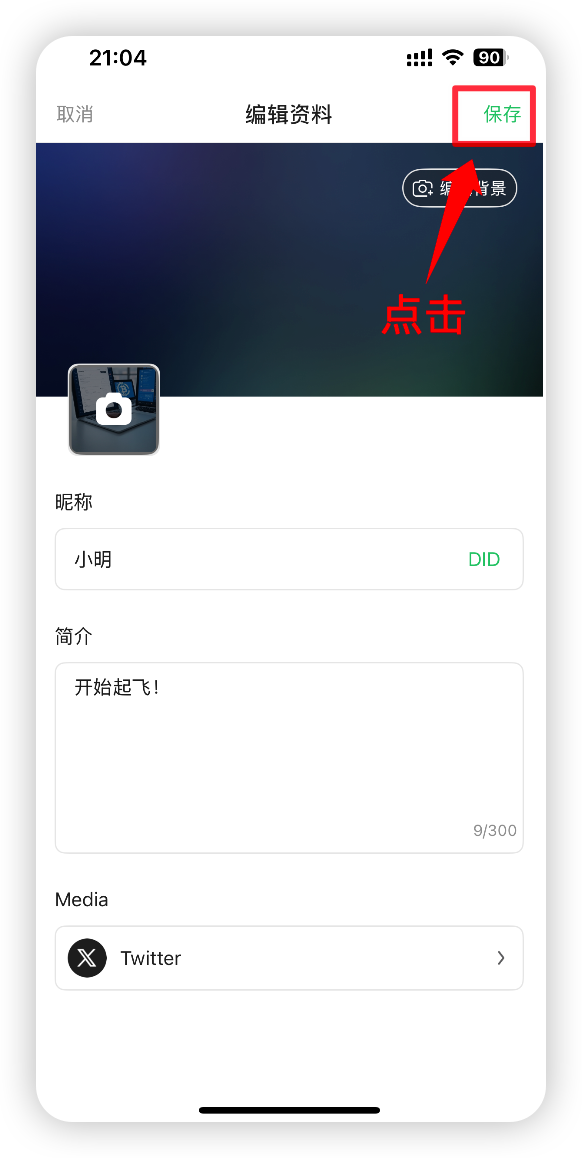
Go to your profile, tap Edit profile, upload an avatar, update your nickname, fill in your bio, and save.
According to product copy: after completing avatar, nickname, and bio, your account can move from L1 to L2. L1 can send text only; L2 and above can send images and links and join red packet grabs (as shown in the current product UI).
FAQ
Why must I back up my recovery phrase?
Your recovery phrase restores wallet and asset control. If it is lost with no backup, assets usually cannot be recovered. Store it offline with pen and paper only.
Can I use the app without completing my profile?
Yes, but L1 accounts have limited capabilities (for example, no images, links, or red packet grabs). We recommend completing your avatar, nickname, and bio early.
What if registration gets stuck?
Check your network and retry the previous step as prompted. For recovery phrase or asset issues, contact official support. Never send your recovery phrase to anyone.