
How to download and install DeBox on Mac?
What this guide covers
Help Mac users download the macOS desktop app from the official site, complete installation, and sign in to the desktop app by scanning a QR code with the DeBox mobile app.
Requirements and before you start
- Use a Mac with Apple Silicon (M1 / M2 / M3 / M4). The official site currently offers macOS Desktop (for M1/M2/M3/M4 chips).
- Have a stable network connection.
- Download the installer only from the DeBox official site https://debox.pro/.
- Desktop sign-in requires a working DeBox mobile app on your phone.
Video walkthrough
Steps
1. Open the official site and choose the macOS desktop app
Open https://debox.pro/ in your browser. In the download section, find and click macOS Desktop (for M1/M2/M3/M4 chips).


2. Download and install to Applications
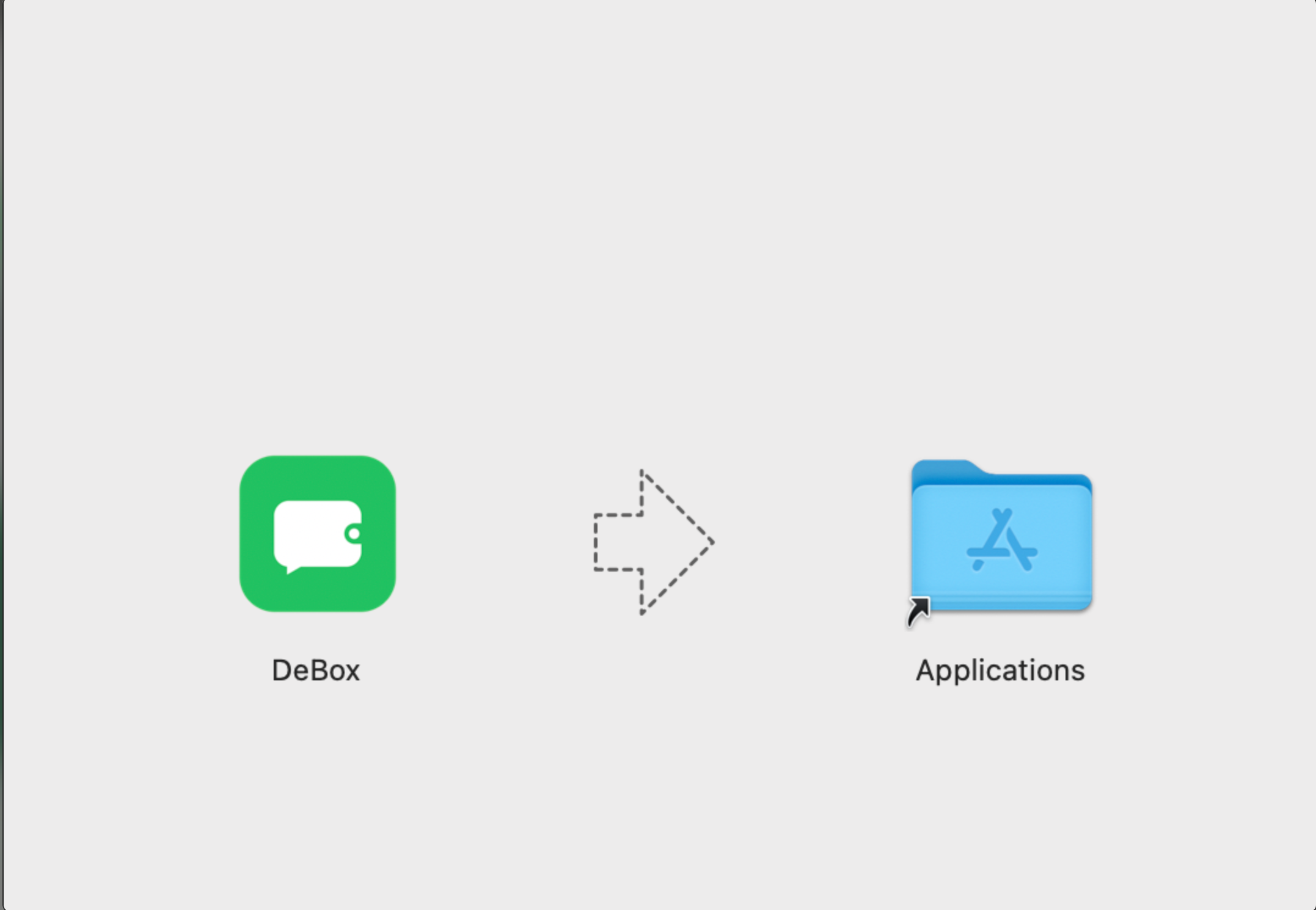
Wait for the browser download to finish (the installer is usually named DeBox-arm64.dmg). Open the file and drag the DeBox icon into the Applications folder.

3. Open the desktop app and sign in with a QR code
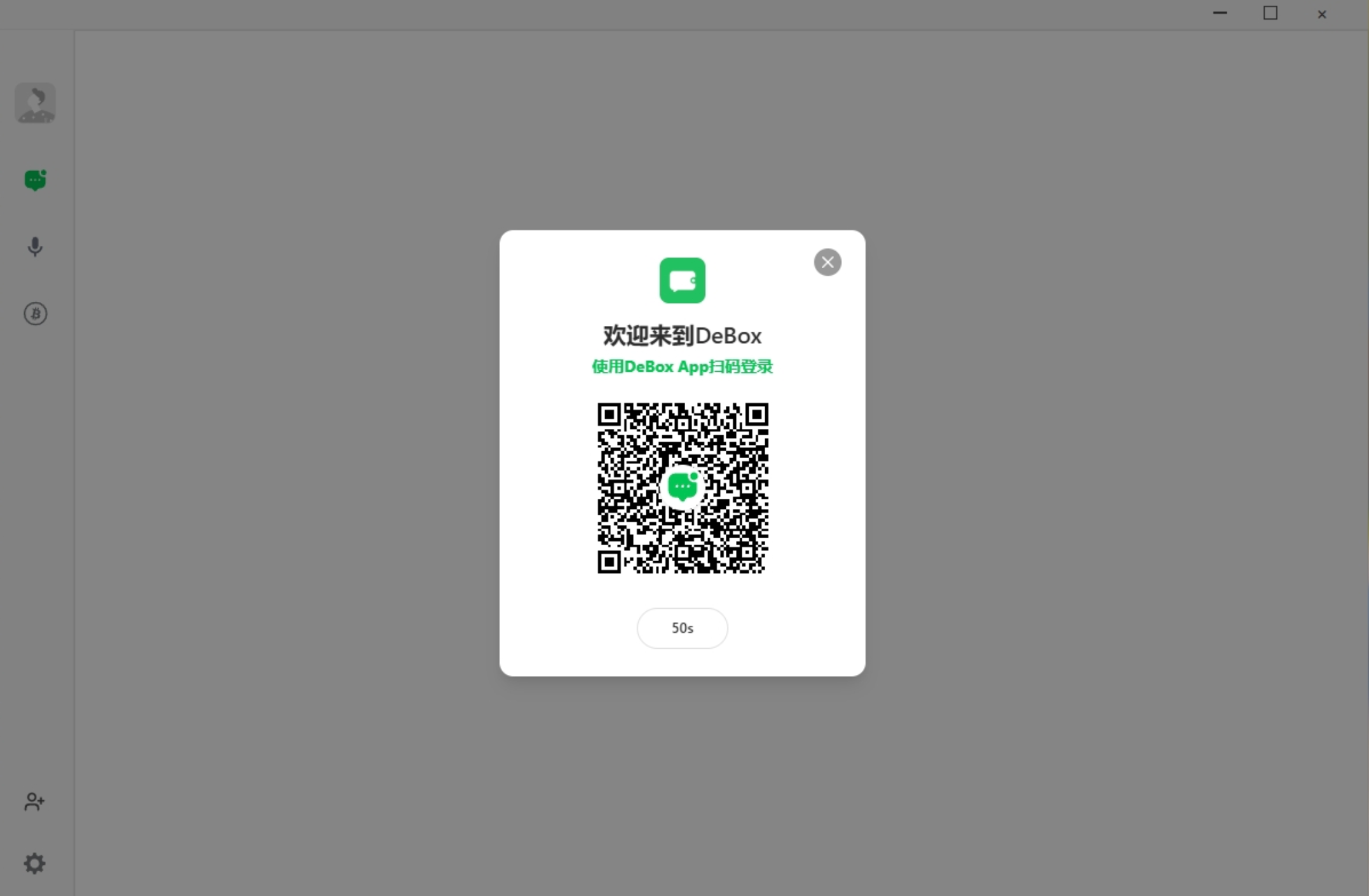
Open DeBox from Applications or Launchpad. On first launch, follow the prompt to Scan to sign in with the DeBox mobile app.
If you do not have a mobile account yet, complete How to register a DeBox account? first.
Frequently asked questions
What if macOS says the developer cannot be verified?
Go to System Settings → Privacy & Security and check whether DeBox was blocked. Follow the system prompt to open it anyway. If it still fails, contact official support with your macOS version and a screenshot of the error.
Can I install this on an Intel Mac?
The official site currently labels the desktop app for M1/M2/M3/M4. If your Mac has an Intel chip and you cannot install it, contact official support to confirm whether a matching installer is available.
Can I sign in to the desktop app without the mobile app?
The desktop app currently uses Sign in with the DeBox app by scanning a QR code. Install and register or sign in on your phone first, then scan the QR code.