
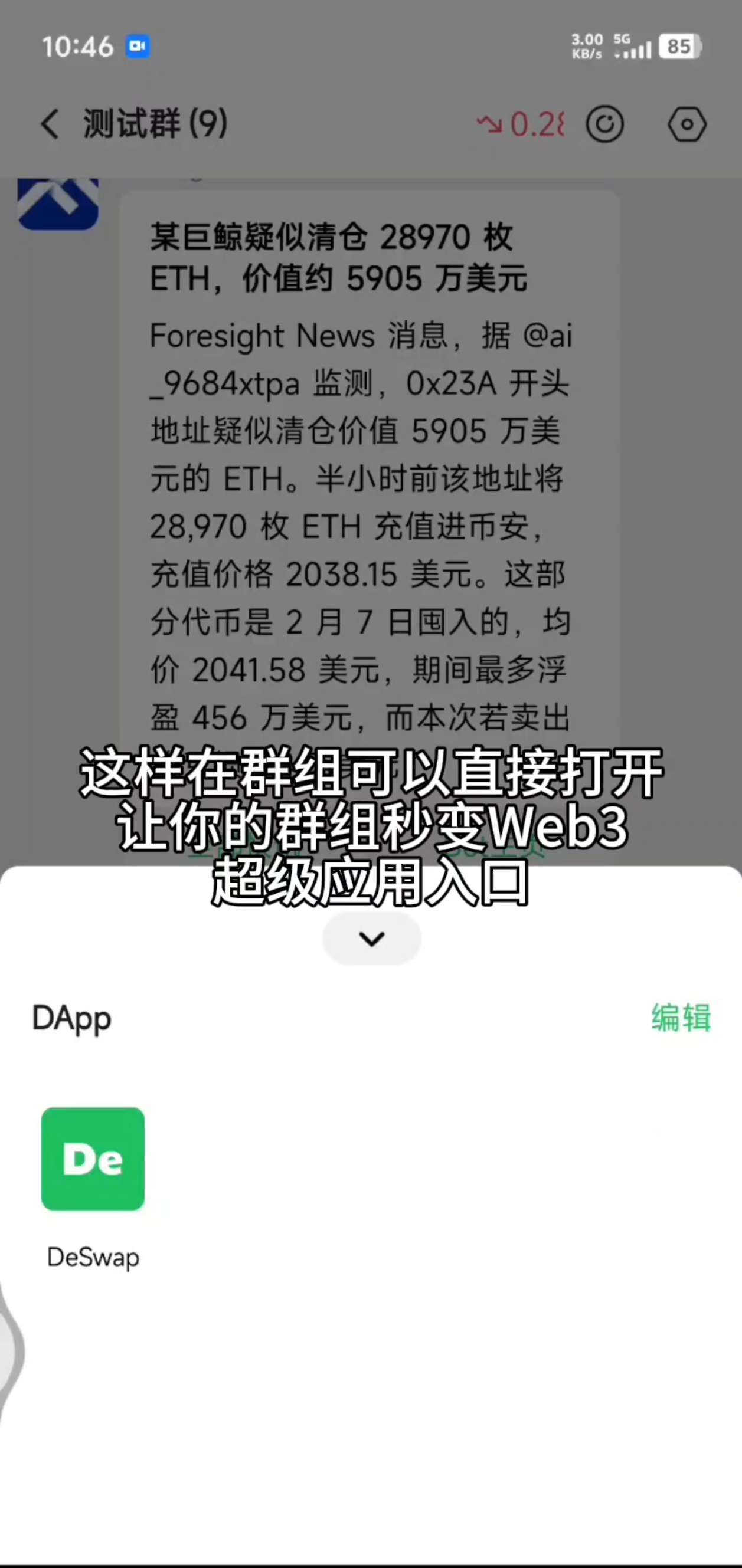
How to add a DApp to a group?
What this guide covers
Walk through How to add a DApp to a group with screenshots (and video). On-screen labels follow the current App.
Requirements and before you start
- DeBox is installed and you can sign in.
- Some actions require group owner or admin permissions, or follow on-page prompts.
Video walkthrough
Steps
Follow the screenshots in order (red boxes/arrows mark key areas from the source tutorial):
1. Step 1
Follow the screenshot below to complete step 1.
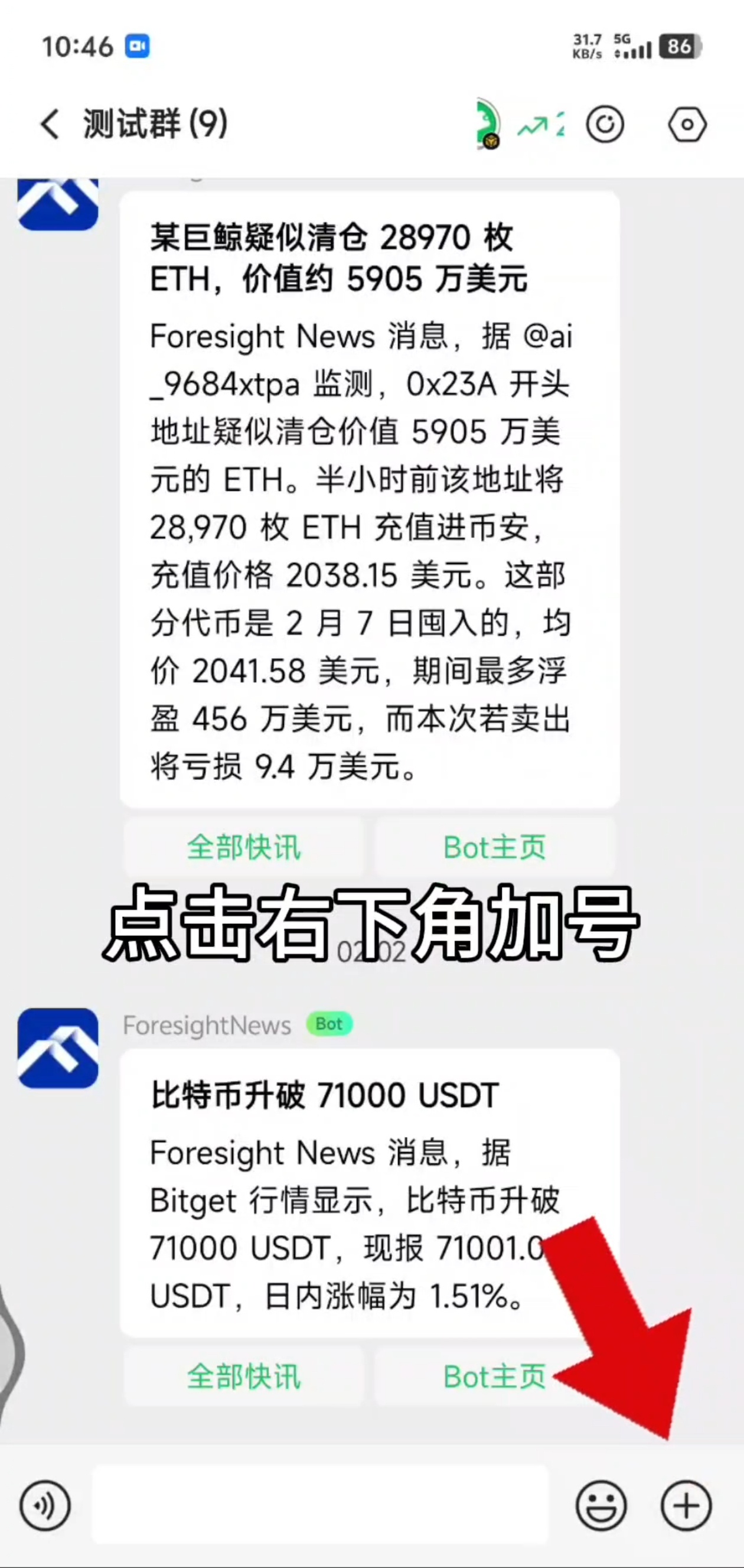
2. Step 2
Follow the screenshot below to complete step 2.
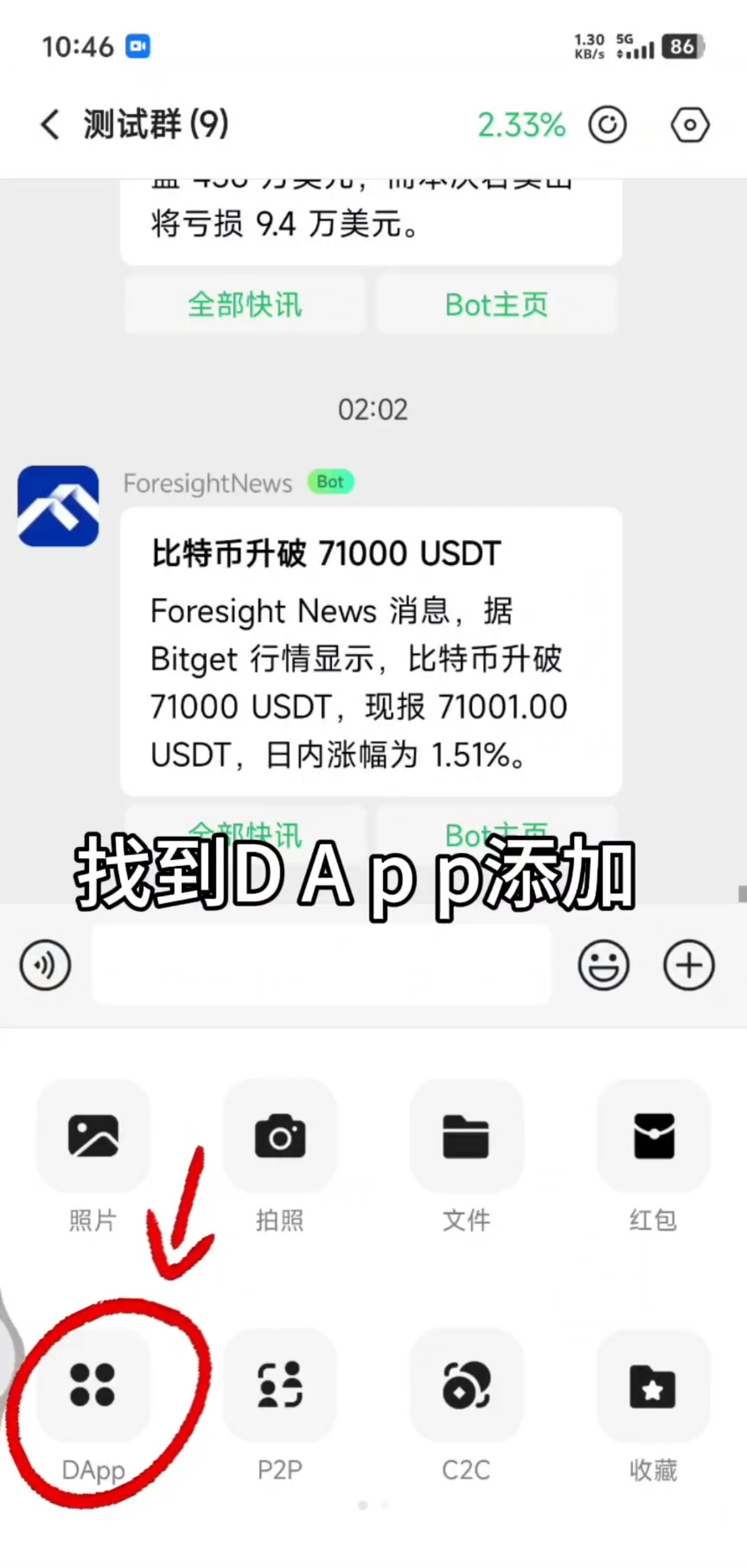
3. Step 3
Follow the screenshot below to complete step 3.
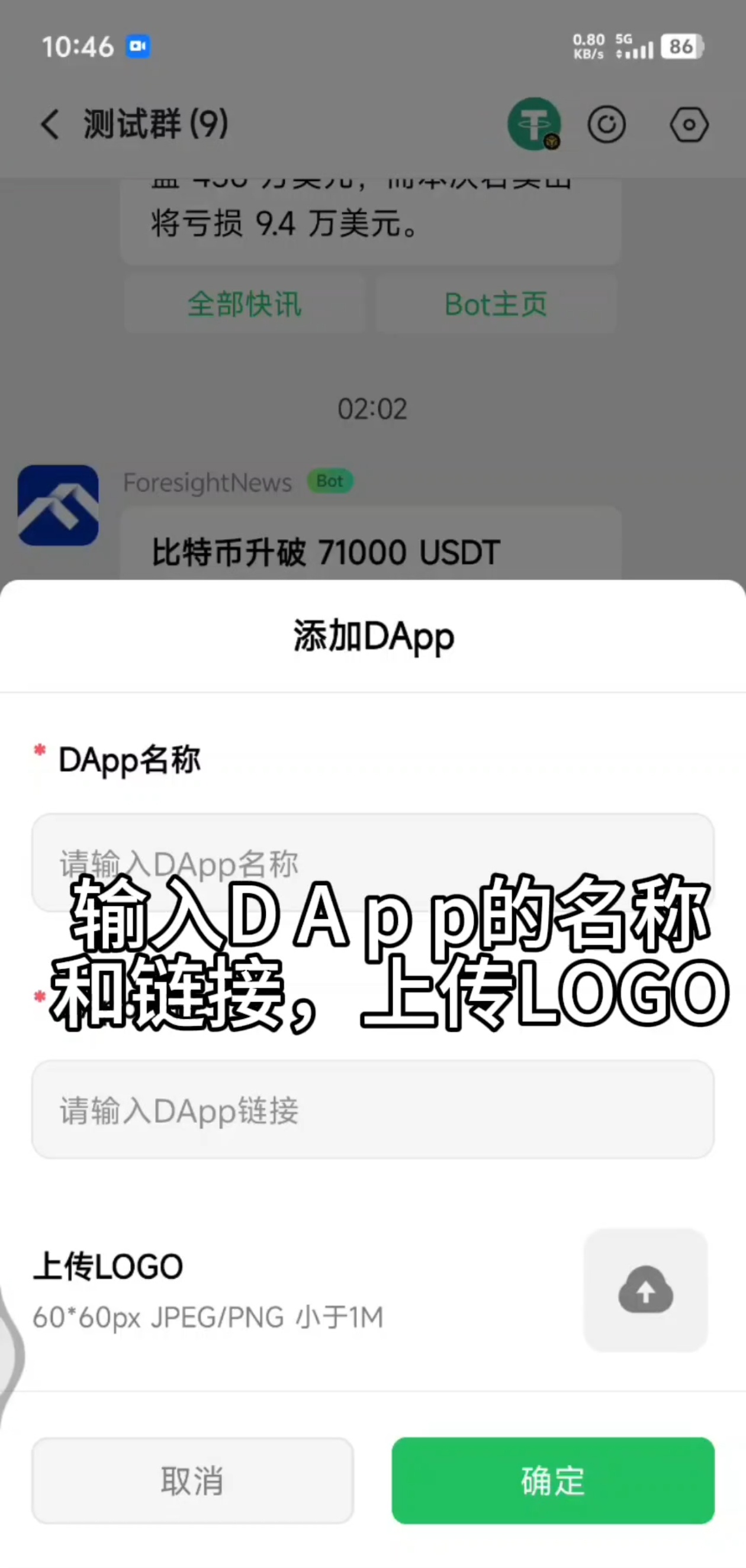
4. Step 4
Follow the screenshot below to complete step 4.
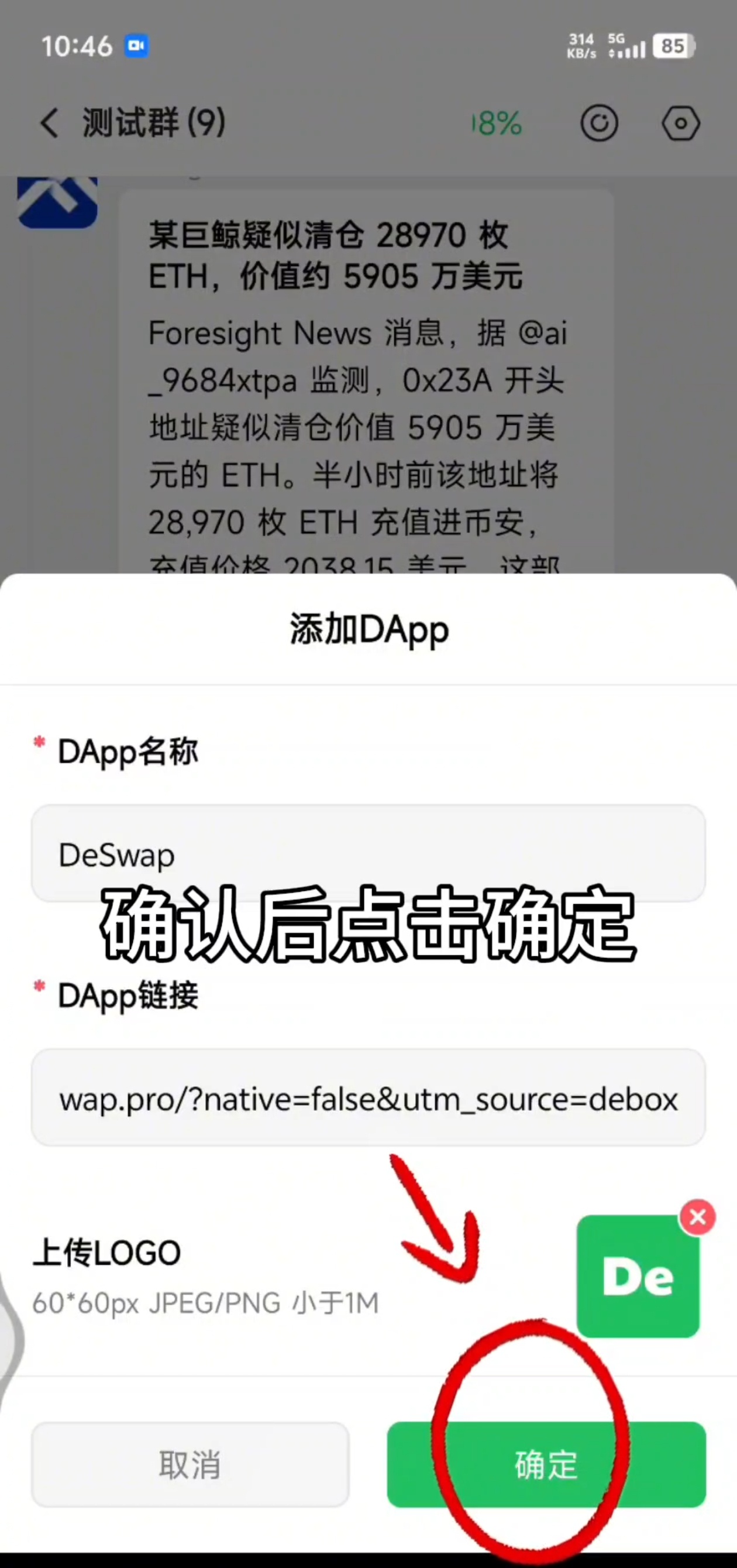
5. Step 5
Follow the screenshot below to complete step 5.
FAQ
Can't find the entry?
Menu names may differ slightly across versions; follow the current App UI, or watch the video walkthrough to locate the entry.
No permission?
Group management actions usually require a group owner or admin; for asset or payment actions, confirm you are signed in with the correct wallet account.