
How to create a DeBox group?
What this guide covers
Helps you create a small group through the App's current main entry: select friends, create instantly, and enter the group chat. At the end, it also explains how a group owner can upgrade a small group to a Club.
Requirements and before you start
- You are signed in to DeBox and can open Messages or Community-related pages.
- The create request carries the current wallet's chain and address; make sure your wallet is available.
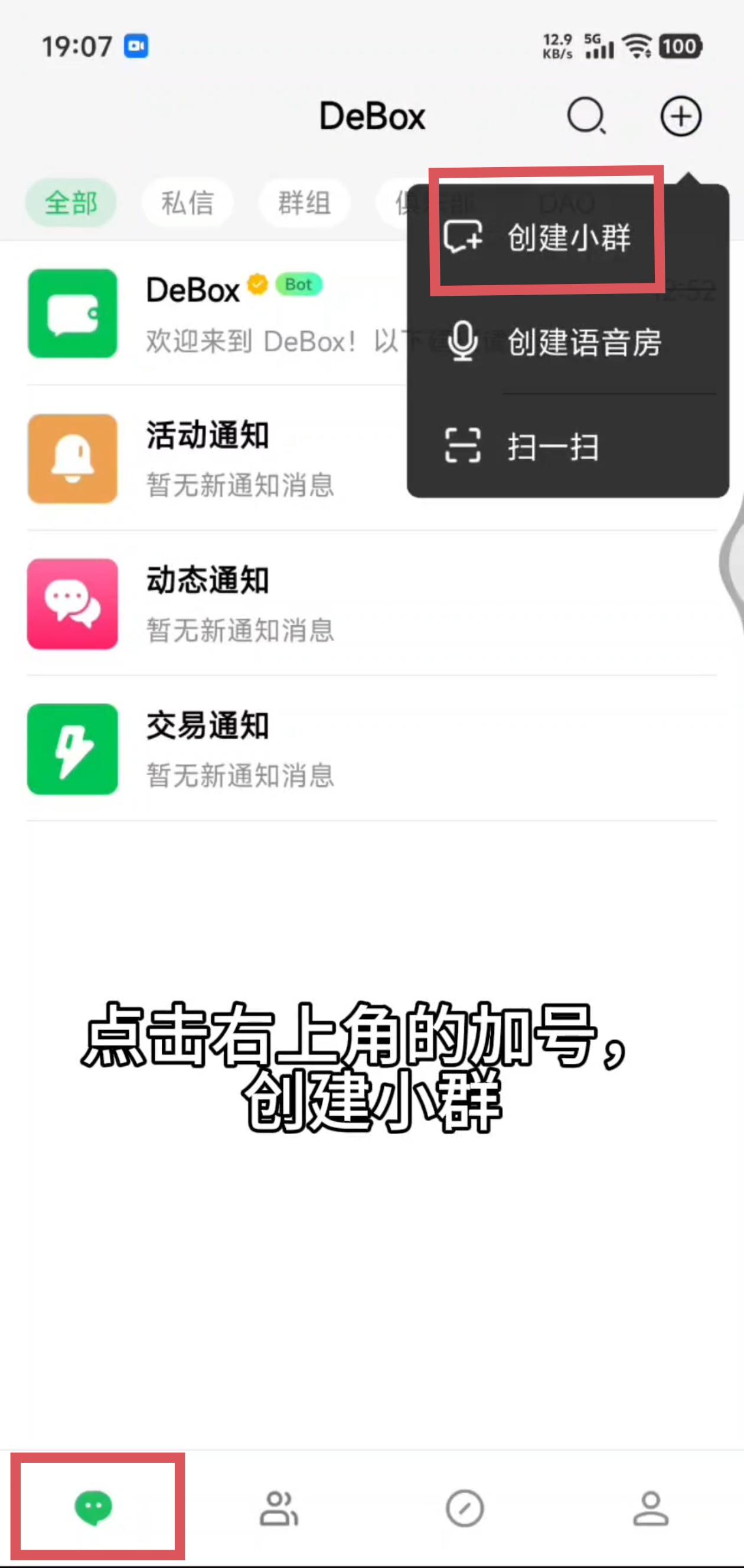
- The + menu in the top-right of the current session page usually shows: Create Small Group, Create Voice Room, and Scan (actual menu items may vary by device).
- This guide focuses on Create Small Group. Create DAO / Create Club capabilities still exist in the App, but the corresponding items may not appear in the + menu—do not treat them as the default entry.
Video walkthrough
Steps
1. Open "Create Small Group"
- Go to the message list or a Community-related page.
- Tap + in the top-right corner.
- Select Create Small Group.
2. Select members
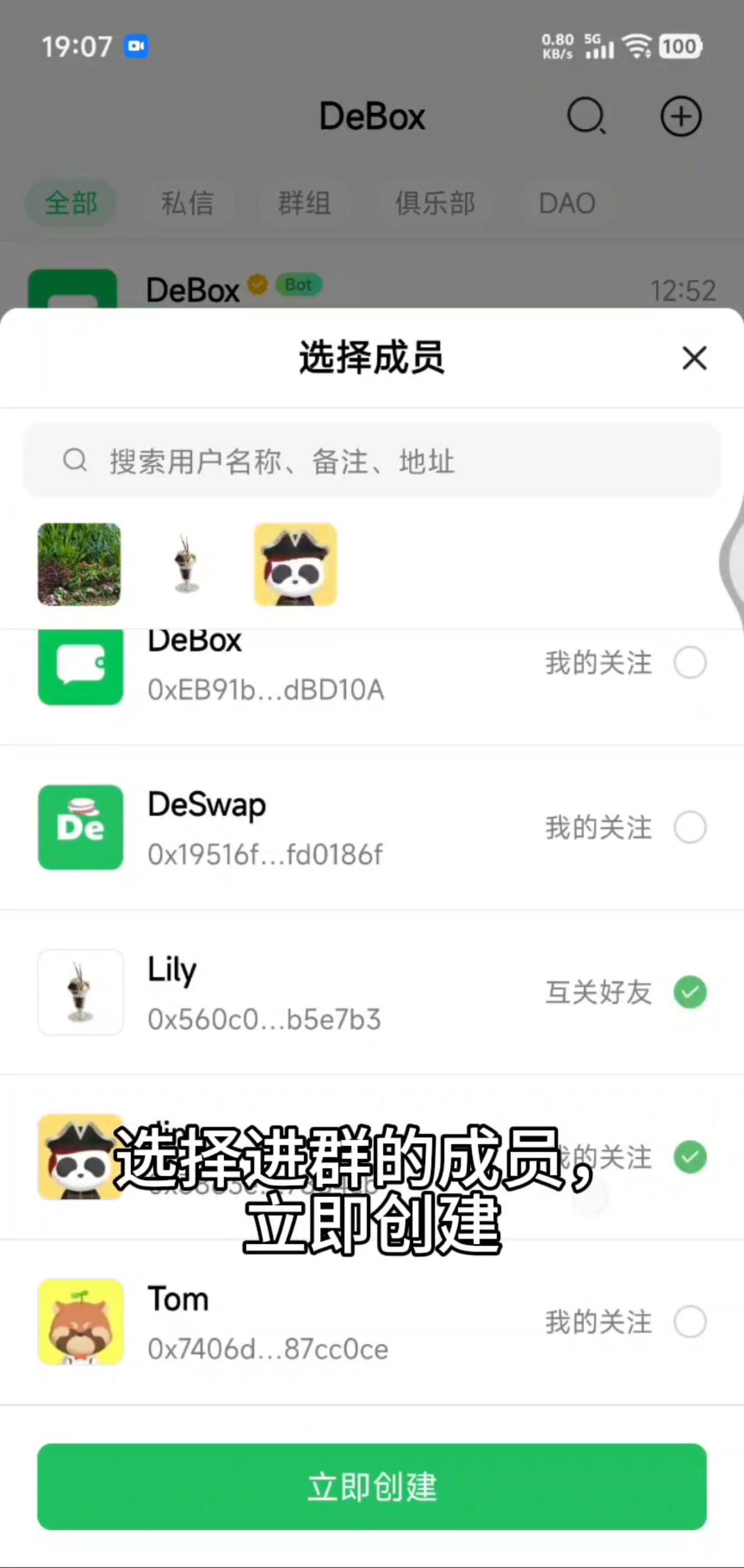
- On the Select Members page, check the friends you want in the group.
- Use the search box to find users by name, remark, or address.
- Select at least 1 person before Create Now becomes available.
In private chat settings, you can also open the same Select Members flow from the plus icon in the members area; the other person in the current private chat may already be pre-selected.
3. Create now
- Tap Create Now.
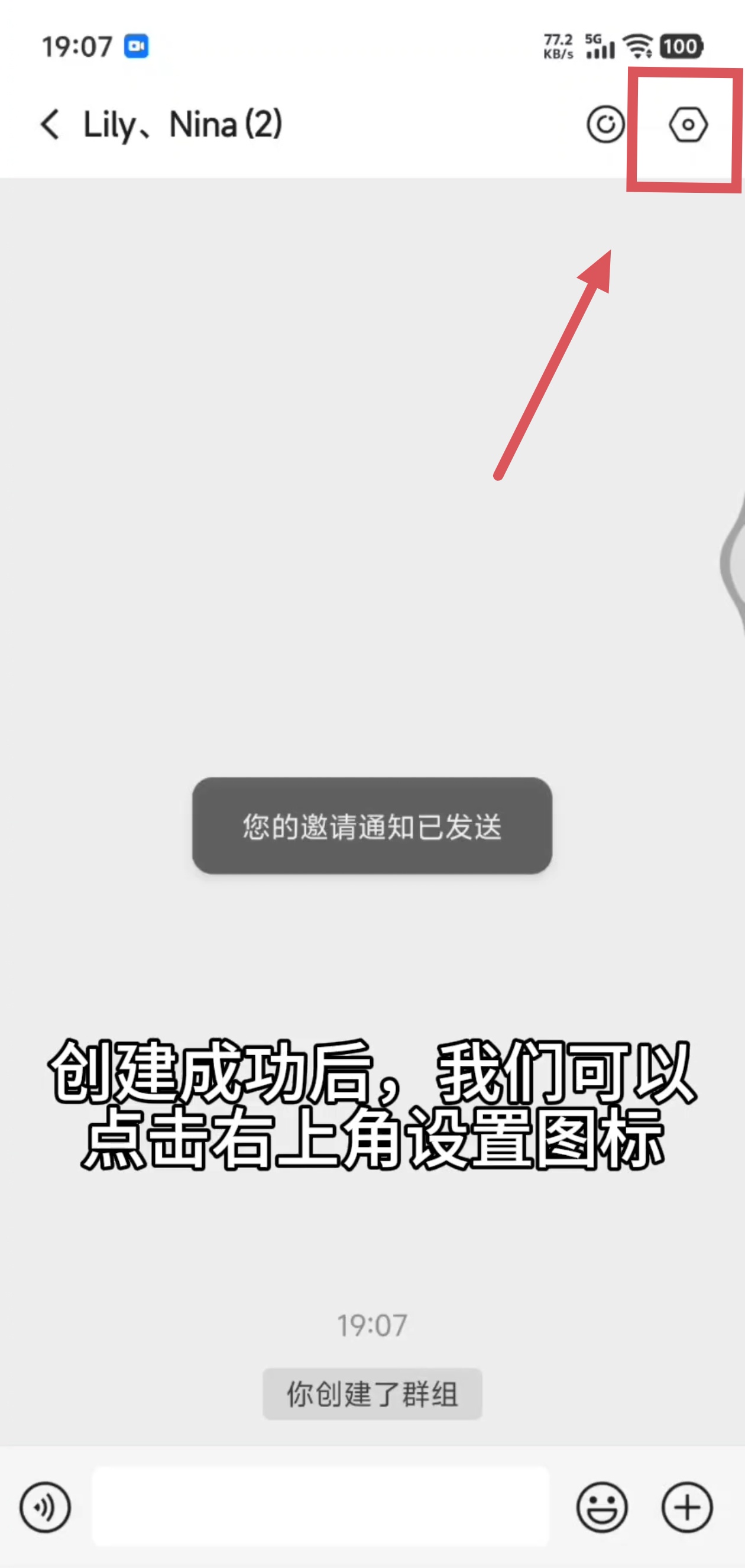
- The group name is usually generated automatically from nicknames of you and selected members (typically the first few members); no manual entry is needed.
- The group avatar is usually composed from member avatars.
- On success, you may see a prompt such as "Your invitation notification has been sent," and the App opens the new group chat.
4. (Optional) Upgrade a small group to a Club (group owner only)
Only when the group type is a small group and you are the group owner, Chat Settings may show Upgrade to Club (subtitle often reads something like "Unlock more public traffic").
- Open the small group → Chat Settings.
- Tap Upgrade to Club.
- Enter the Club name (required) and description (optional).
- Choose an upgrade method on the page, such as Spend tokens or Stake NFT (options depend on what the page shows).
- Confirm and submit. If on-chain payment or staking is involved, you may need to wait for on-chain confirmation before it takes effect.
Product summary (per create/upgrade page copy): Clubs are aimed at operators and project teams; you can set join conditions and reach public traffic. When created via staking a DeBox NFT, the initial capacity is often 3,000 members and can be expanded.
FAQ
No Create Club / Create DAO in the + menu?
The current + menu may only keep items such as Create Small Group. DAO (token/NFT holding groups) and Club creation entries depend on the live menu or other business entries—do not rely on + alone.
How many people can I select when creating a small group?
The client does not hard-code the same limit as "invite up to 20 people" for Create Small Group; follow what the current page allows and do not apply invite-limit copy by default.
How do I change the group name, announcement, or join conditions after creation?
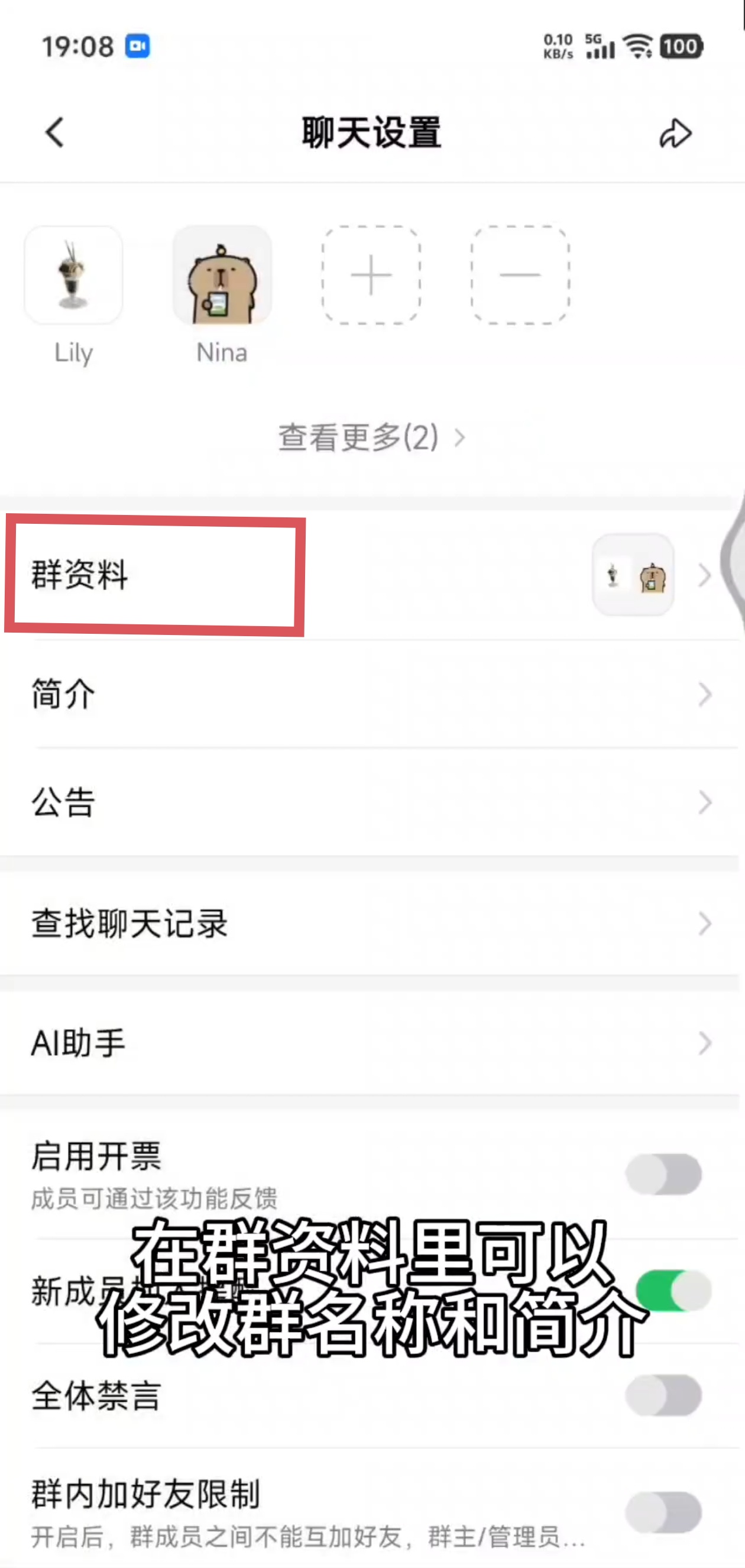
Open the group chat → Chat Settings to edit group profile, announcement, join settings, and more. For members and permissions, see How to manage group members and permissions?.
Does creating a voice room count as creating a group?
No. Voice rooms are a separate capability; see How to create and use a voice room?.